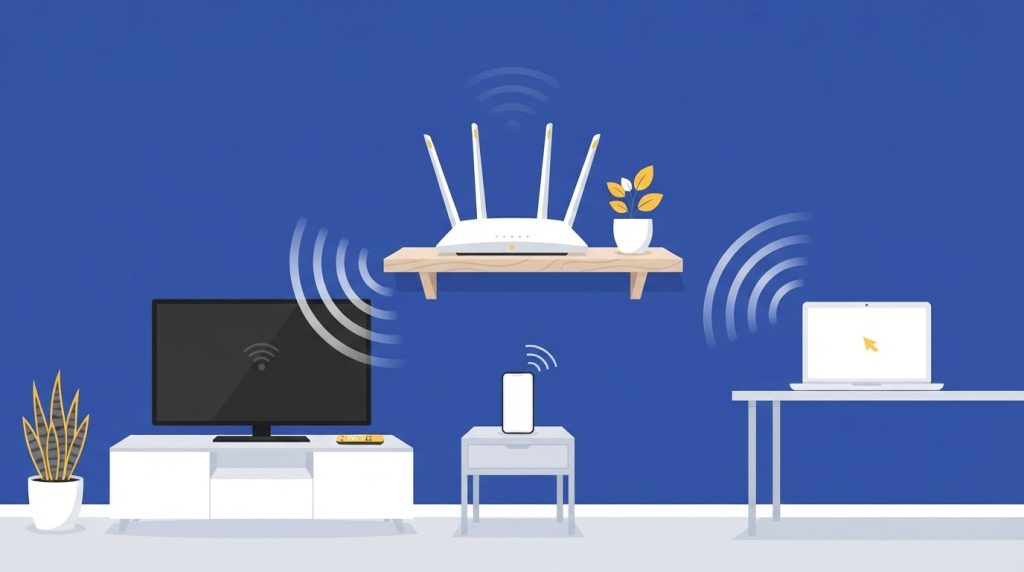
192.168.2.1 is a local IP address that some modems and routers use for their admin interface. When you want to change your Wi-Fi password, network name or DNS setting, you type this address into a browser to open the device’s settings page.
Not every router uses it. Many routers default to 192.168.1.1 or 192.168.0.1; 192.168.2.1 shows up mostly on some Belkin, SMC and Edimax models, and on a second router connected behind your provider’s modem. This guide is only for your own router and your own network.
What is 192.168.2.1?
192.168.2.1 is a private (local) IP address. It cannot be reached from the internet, only from devices connected to that router. The router hands out addresses in the 192.168.2.x range to the devices on your home network and acts as their default gateway. If your device’s gateway is not 192.168.2.1, the address will not open for you. That is not a fault; your router simply uses a different address.
Right and wrong ways to type it
The most common reason the page does not open is a typing mistake. The address contains only digits and dots, and it goes in the browser’s address bar, not in a search box.
| Typed as | Result | Why |
|---|---|---|
| 192.168.2.1 | Correct | Four numbers separated by dots |
| http://192.168.2.1 | Correct | Add http:// if the browser sends you to a search page |
| 192.168 2.1 | Wrong | A space instead of a dot; the browser runs a search |
| 192.168.2.l | Wrong | The last character is a lowercase L, not the digit 1 |
| 192.168.2 | Wrong | The last number is missing |
| 192,168,2,1 | Wrong | Commas instead of dots |
| www.192.168.2.1 | Wrong | An IP address does not take www |
Step-by-step login
- Connect your phone or computer to the router’s Wi-Fi network, or use an Ethernet cable if you can. The page will not open over mobile data.
- Type
192.168.2.1into the browser’s address bar and press Enter. - Enter the username and password on the login screen.
- Once you are in, you can reach the wireless, password and DNS sections. Menu names vary by brand and firmware version.
Where to find the username and password
The admin username and password are printed on the label on the bottom or back of the router. The label usually lists the admin address, username, password and Wi-Fi details on separate lines. Some models ask you to create the password the first time you log in.
The admin password and the Wi-Fi password are not the same thing. If you changed the admin password earlier and have forgotten it, the router needs a factory reset. A reset can also wipe your internet connection settings, so get your connection details from your provider first.
Enter this password only in your own router’s admin page. Do not give it to a website, a message or a caller that asks for it.
If the page will not open
- Typing: Retype the address using the table above.
- Connection: Make sure your device is on that router’s network; the admin page may not open from a guest network.
- Gateway: Your router may use a different address. Find the real one with the steps below.
- VPN and proxy: Turn them off and try again.
- Browser: Try a private window or a different browser.
- Restart: Unplug the router, wait about half a minute and plug it back in.
Finding the gateway address on your device
Your router’s real admin address is the default gateway your device sees.
- Windows: Open Command Prompt, run the command below and look at the “Default Gateway” line.
ipconfig- Mac: In System Settings, open Wi-Fi and then the details of the connected network; the “Router” line shows the address.
- Android: In Wi-Fi settings, open the details of the connected network and look for “Gateway”.
- iPhone: In Settings, open Wi-Fi and tap the info icon next to the connected network; the “Router” line shows the address.
If you see 192.168.0.1 there instead, go to the 192.168.0.1 router login guide.
Frequently asked questions
What is the difference between 192.168.2.1 and 192.168.1.1?
Both are local gateway addresses; the manufacturer decides which one a router uses. They work the same way.
I have two devices at home. Whose admin page opens?
If you connected a second router to your provider’s modem, the router often uses a different address (192.168.2.1, for example) so the two do not clash. You get the admin page of whichever device’s network you are connected to.
What can I do once I am logged in?
You can change your Wi-Fi password, edit the network name or update the DNS address. See changing your Wi-Fi password and changing DNS on your router for the steps.