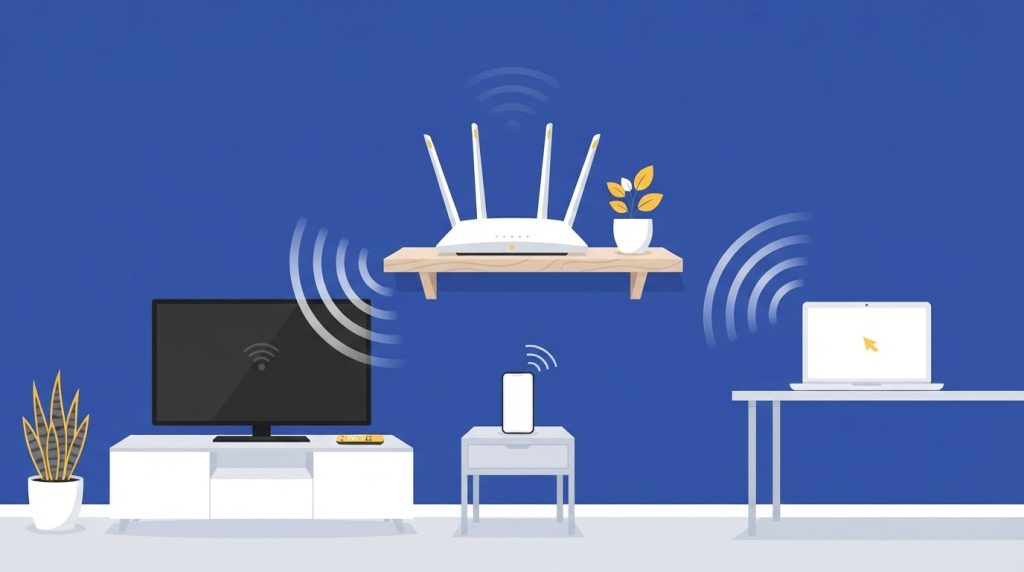
192.168.0.1 is the local network address many modems and routers use for their admin interface. You type it into a browser when you want to change your Wi-Fi password, see connected devices or adjust DNS settings.
This guide is only for your own router and your own network. Below you will find the correct way to type the address, the login steps, and what to check when the page does not load.
What is 192.168.0.1?
192.168.0.1 is a private (local) IP address. It cannot be reached from the internet, only from inside your home network. If your router uses this address, it also acts as the “default gateway” for the devices on your network. Many TP-Link and D-Link models use 192.168.0.1 by default, but the address depends on the model and on how your internet provider configured it. The section on finding your gateway address below shows how to check which address your own router uses.
Correct and incorrect ways to type it
The most common reason the page fails to open is a typing mistake. The address contains only digits and dots.
| What was typed | Status | Problem |
|---|---|---|
| 192.168.0.1 | Correct | – |
| 192.168 0.1 | Wrong | A space instead of a dot |
| 192.168.O.1 | Wrong | The letter O instead of zero |
| 192.168.0.l | Wrong | A lowercase L instead of the digit one |
| 192,168,0,1 | Wrong | Commas instead of dots |
| 192.168.01 | Wrong | A dot is missing |
| www.192.168.0.1 | Wrong | No www goes in front |
Type the address into the address bar at the top of the browser, not into a search box. If the browser sends you to a search page, add http:// in front and try http://192.168.0.1.
Step-by-step login
- Connect your device to the router’s Wi-Fi network or plug it into the router with an Ethernet cable. The page will not open over mobile data.
- Open a browser, type
192.168.0.1into the address bar and press Enter. - Enter the username and password on the login screen.
- Once you are in, change only the setting you came for and leave settings you do not recognise as they are.
After your first login, replacing the admin password with a strong one of your own is an important step for the security of your network.
Where to find the username and password
The admin password is separate from the Wi-Fi password. On most routers the login details are printed on a label on the bottom or back of the device. If your internet provider supplied the router, the details are in the provider’s setup documents or available from its customer support.
Some models have no preset password at all. According to TP-Link’s support pages, for example, newer models ask you to create an admin password the first time you log in. In that case the valid password is the one you, or whoever set up the router, chose at that point.
If you cannot remember the password, do not rely on “default password” lists circulating online. The last resort is a factory reset. A reset also erases the internet connection settings, so first make sure you have the username and password your internet provider gave you.
If 192.168.0.1 will not open
- Check the spelling. Retype the address using the table above.
- Make sure you are on the right network. The interface cannot be reached from a guest network or over mobile data.
- Confirm the gateway address. Your router may use 192.168.1.1 or another address.
- Turn off any VPN or proxy. An active VPN can block access to local addresses.
- Try another browser or a private window. Extensions and cached data can stop the page from loading.
- Connect by cable. If it does not work over Wi-Fi, try an Ethernet cable.
- Restart the router. Unplug it, wait about half a minute, then plug it back in.
Finding the gateway address on your device
- Windows: open Command Prompt and type
ipconfig. The address on the “Default Gateway” line is your router’s address. - Mac: in System Settings, open the details of your Wi-Fi connection and look at the “Router” line under TCP/IP.
- iPhone: go to Settings > Wi-Fi, tap the info icon next to the connected network and look at the “Router” line.
- Android: open the details of the connected network in Wi-Fi settings and look at the “Gateway” line.
Menu names can vary by device model and software version.
Frequently asked questions
What is the difference between 192.168.0.1 and 192.168.1.1?
Both are local network addresses and do the same job. Which one applies is decided by the router’s manufacturer or by your internet provider’s configuration.
Can I log in from a phone?
Yes. With the phone connected to the router’s Wi-Fi, just type the address into the browser. Turning mobile data off avoids confusion.
What can I do in the interface?
You can change the Wi-Fi name and password, see connected devices and set DNS servers. For DNS, see how to change DNS on your router, and for addresses you can use, see public DNS servers.